A client’s computer recently decided to audition for a disaster movie. Warnings about expired protection, antivirus updates, and viruses were piling up on the screen. One even claimed their Android device was at risk. They were using a Windows computer. Apparently, the scammers skipped inventory day.
We stopped the unwanted alerts by blocking a website’s notification permission in the browser. If something similar appears on a business computer, pause before clicking. The alert itself does not prove the computer has a virus, but following its instructions can create a real problem.
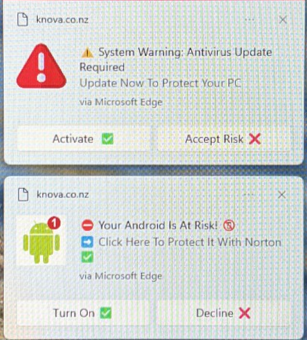
Two misleading alerts on a client’s computer. Both identify Microsoft Edge as the delivery app and display a website address. The Android warning on a Windows PC is another reason to question the message.
What you are actually seeing
These alerts are consistent with browser notification spam: a website uses permission to send messages to your desktop, then dresses those messages up as security warnings. “Via Microsoft Edge” identifies the delivery app; it does not mean Microsoft verified the message. A familiar antivirus name or logo is not proof of who sent it.
Blocking that permission stops future notifications from that website. It does not, by itself, establish that the whole computer is clean. 1
How a website gets permission
Websites can ask to send notifications. That feature has legitimate uses, such as alerts from a work application. Once permission is granted, a website can send messages outside the page you originally visited. In Edge, they can appear even after the browser window is closed. 1
The trap is getting you to approve something you did not really want. A misleading page may tell you to click Allow to continue or prove you are human. You may be trying to read an article or finish a task, and the prompt becomes one more thing to dismiss. That is a possible route into this problem; I cannot say which prompt started this client’s alerts.
Permission to send notifications is not permission to read every file or control the computer. It gives the sender a way to keep putting messages in front of you. The dangerous part is what those messages persuade you to do next.
This is also why the usual pop-up blocker may not fix it. Website notifications and pop-up windows are separate browser features. For this issue, you need the notification permissions. 1
Who this could happen to
Anyone can fall for a convincing prompt. That includes business owners, office staff, people who rarely use a computer, and the IT person everyone calls for help. Experience helps you recognize the warning signs, but it does not make you immune to a distracted moment.
Maybe you are answering the phone, finishing an invoice, and trying to figure out why the printer has chosen violence again. A box appears, you click what looks like the button that gets you back to work, and you move on. One mistaken click says very little about someone’s intelligence or ability to do their job.
These messages try to make you react before you have time to question them. Everybody makes mistakes. The useful question is what happens next: can someone pause, ask for help, and explain what they clicked without worrying about being embarrassed? That is the kind of response I want business owners to encourage.
What could happen to your business
An employee trying to clear a noisy screen may click a fake renewal, download a supposed security update, or call a bogus support number. Those actions can lead to stolen login details, unwanted software, fraudulent payments, or remote access for someone who has no business being on your computer. 3
For a small business, an affected email account could expose customer conversations or be used to send convincing messages to clients. An affected workstation could interrupt invoicing, scheduling, or payroll. Even when nobody follows the bait, repeated interruptions waste time and make real alerts easier to overlook.
The screenshot does not establish that any of those outcomes happened. It shows why treating every alarming message as an instruction is a bad habit. A red rectangle is not an IT department.
If someone already clicked
If they only opened the message, close the page without interacting further, note what happened, and report it to your IT contact. Check whether anything downloaded. Do not open an unexpected file. Clicking alone does not automatically mean the computer is compromised.
If they entered a password, contact IT promptly. From a trusted device, change that password and any reused copies. Ask IT to review sign-ins and end unauthorized sessions; a password change alone may not end every existing session. 3
If they ran software or granted remote access, disconnect Wi-Fi and unplug Ethernet, then contact IT using another device. Leave cleanup to whoever handles the incident. If payment details or money were involved, contact the bank or card provider through a known number immediately. Simply blocking notifications is no longer enough. 4
How to stop the unwanted notifications
These steps are for desktop Microsoft Edge and Google Chrome. Use the browser named in the alert. On a company-managed device, contact IT if the setting is locked or you are unsure which entry to block. Menu labels can vary by version.
First leave the warning alone
Do not use buttons inside the message, including ones labeled “Accept risk,” “Ignore,” or “Update.” Open the browser yourself. Note the website address shown on the notification without visiting it. A screenshot can help IT identify the sender.
Microsoft Edge
- Open Edge. Press Ctrl + L to select the address bar at the top, type the following address, and press Enter. This opens browser settings, not a website.
edge://settings/content/notifications
-
Find the sites allowed to send notifications. Locate the address shown on the unwanted alert. Open its menu or site entry and set Notifications to Block.
-
If the shortcut redirects or your screen looks different, open the three-dot menu, choose Settings, then Privacy, search, and services → Site permissions → All sites. Select the matching site and set Notifications to Block. 1
Google Chrome
- Open Chrome. Press Ctrl + L, enter the following address, and press Enter.
chrome://settings/content/notifications
-
Find the unwanted site under Allowed to send notifications. Open its menu and choose Block. Alternatively, add its address under Not allowed to send notifications.
-
To reach the same settings through the menus, choose the three-dot menu → Settings → Privacy and security → Site settings → Notifications. 2
Check that the fix worked
Clear the old alerts from the Windows notification center without opening their contents. Existing notifications may remain after permission changes. Watch for new messages from that sender. If they keep coming, check the browser and profile named in the alert, and whether a different website is sending them.
Use Block rather than just dismissing the alert. Also avoid silencing every Windows notification as your main fix; that can hide useful work and security messages while leaving the website permission in place.
Check the real security software
Open Windows Security from the Start menu yourself. If Microsoft Defender is your active antivirus, open Virus & threat protection, update its protection information, and run a Quick scan. If your business uses another security product, use that product or ask IT. 5
A clean scan is reassuring, but it does not undo a stolen password or a fraudulent payment. Continued alerts, unfamiliar software, or unexpected account activity deserve a closer look.
How to keep it from happening again
Make website notifications an intentional choice. Allow them only when you recognize the site and have a reason to receive its messages. If a page says you must enable notifications to prove you are human, leave it. The internet will survive without your attendance.
Review the allowed-sites list and block entries you do not need. If you do not use website notifications, disable new notification requests in the browser’s notification settings. Still review existing permissions; changing the default is not a substitute for blocking the sender already causing trouble. 1
Keep the browser, Windows, and your security software updated. Leave browser protection features enabled. For a business with several computers, ask IT whether notification permissions can be managed consistently, with exceptions for work tools that need them.
Give employees a known way to reach support. Put that contact somewhere easy to find before an alarming message appears. Staff should verify security warnings through the installed security app or their usual IT contact, rather than following contact details supplied by the warning. 3
Make reporting easy and blame-free. “Tell me what happened” will get you more useful information than “Why did you click that?” People are busy, prompts are deliberately confusing, and embarrassment can turn a small issue into a much longer afternoon.
Keep a screenshot like this one for a short team discussion. Ask people to identify the sender, the urgency, and the action the message wants them to take. You do not need a two-hour presentation to teach someone to pause.
When to ask for help
If the alerts return, you cannot identify the sender, or someone downloaded software, shared account details, or allowed remote access, get help. Those details change the next steps. Tell your IT contact what happened, what was clicked, and roughly when it started.
If your business needs help sorting out suspicious alerts or tightening up everyday IT settings, contact BlueStrata at bluestrata.io. Bring the screenshot. We can start with what is actually happening on the screen.
Sources and further reading
Browser guidance checked September 21, 2026. The example comes from a client’s computer; possible business consequences are scenarios, not findings from that incident. Numbers in the article refer to the sources below.