Go check right now whether MFA is turned on for your business email. If it’s already on, you’re ahead of most of the businesses I walk into. If it’s not, or you’re not totally sure what you were even looking for, that’s fine too. That’s what this article is for.
Every business has a front door. It’s the one every business already has, and it’s usually the one nobody actually locked.
In this world, your front door is your login. And for most small businesses, that login is protected by exactly one thing: a password. Just the one. A single string of characters standing between a stranger on the internet and your email, your client data, your bank account, and your Microsoft 365 tenant.
Here’s the uncomfortable part. That password is probably weaker than you think, and not because your employees are careless. It’s because of decades of bad advice.
You know the drill: eight characters, one capital letter, one number, one symbol, change it every 90 days. Every business has some version of this policy. Here’s the problem: that policy doesn’t actually stop attackers, and it never really did. It mostly produces “Summer2026!” followed by “Summer2026!!” three months later, written on a sticky note, because forcing people to memorize a new password every quarter guarantees they’ll pick the easiest one they can remember.
The organizations that actually study this stuff, including the people who write federal password guidelines, have been saying the same thing for years: complexity rules and forced rotation don’t meaningfully stop breaches. Length, uniqueness, and a second layer of proof do.
Let’s fix the first two right now, since they don’t cost anything and take five minutes.
Use a passphrase, not a password
Instead of trying to remember something like “Xk9!mQ2vL,” string together a few unrelated words with a symbol or number mixed in. Something like “Donkey-Nuggets-Tango1$” is a good example: four random words and a symbol, no keyboard gymnastics required. It looks a little silly. That’s fine. Silly is not a security weakness.
Here’s why it actually works better: password strength comes down mostly to length, not complexity. “Donkey-Nuggets-Tango1$” is 22 characters long. A typical “complex” password that satisfies the old rules, something like “Tr0ub4dor&3,” is 11 characters. Longer passwords take exponentially more computing power to crack through brute force, even when the shorter one has more symbols crammed into it.
You get more real security out of four random words strung together than out of eight characters of keyboard gymnastics, and you’ll actually remember it, which means employees stop writing it on a sticky note.
A few rules for a good passphrase:
- Three or more unrelated words. Not a quote, not a song lyric, not your kid’s name and birthday. Random works better than meaningful, because meaningful is guessable.
- Throw in a number and a symbol somewhere. It doesn’t need to be complicated. Somewhere in the phrase is enough.
- A different passphrase for each critical account. Reusing even a great passphrase across your email and your bank account means one breach compromises both.
Give your team a couple of examples like the one above and tell them to build their own the same way. It’s a five-minute conversation that fixes a problem you’d otherwise be fighting for years.
That covers a strong, unique lock. Now let’s add the deadbolt.
That second layer is multi-factor authentication, MFA for short, and it’s the single highest-leverage fix in this entire series. Not the most expensive. Not the most technical. The highest-leverage. Here’s why.
MFA adds something you have. Usually that’s your phone: an app that generates a rotating code, or a push notification you tap to approve. Now a stolen password isn’t enough on its own. The attacker also needs to be holding your employee’s phone. That one change closes the door on the overwhelming majority of the account takeovers I see.
Think of it like this: your password is the lock on the front door. MFA is the deadbolt. A lock can be picked, copied, or handed over by someone who didn’t realize what they were doing. The deadbolt needs a second, separate key that whoever’s trying to get in from the other side of the internet simply doesn’t have.
Turning it on
If you’re on Microsoft 365, which most of the businesses I work with are, this lives in your admin center under security settings. The exact screen depends on your license tier, but you’re looking for either “Security Defaults” (the simple, all-or-nothing switch) or “Conditional Access” (more control, usually on higher-tier plans). Either one gets you MFA. Don’t get stuck picking the “perfect” option. Turning on the simple version today beats spending three weeks researching the ideal configuration.
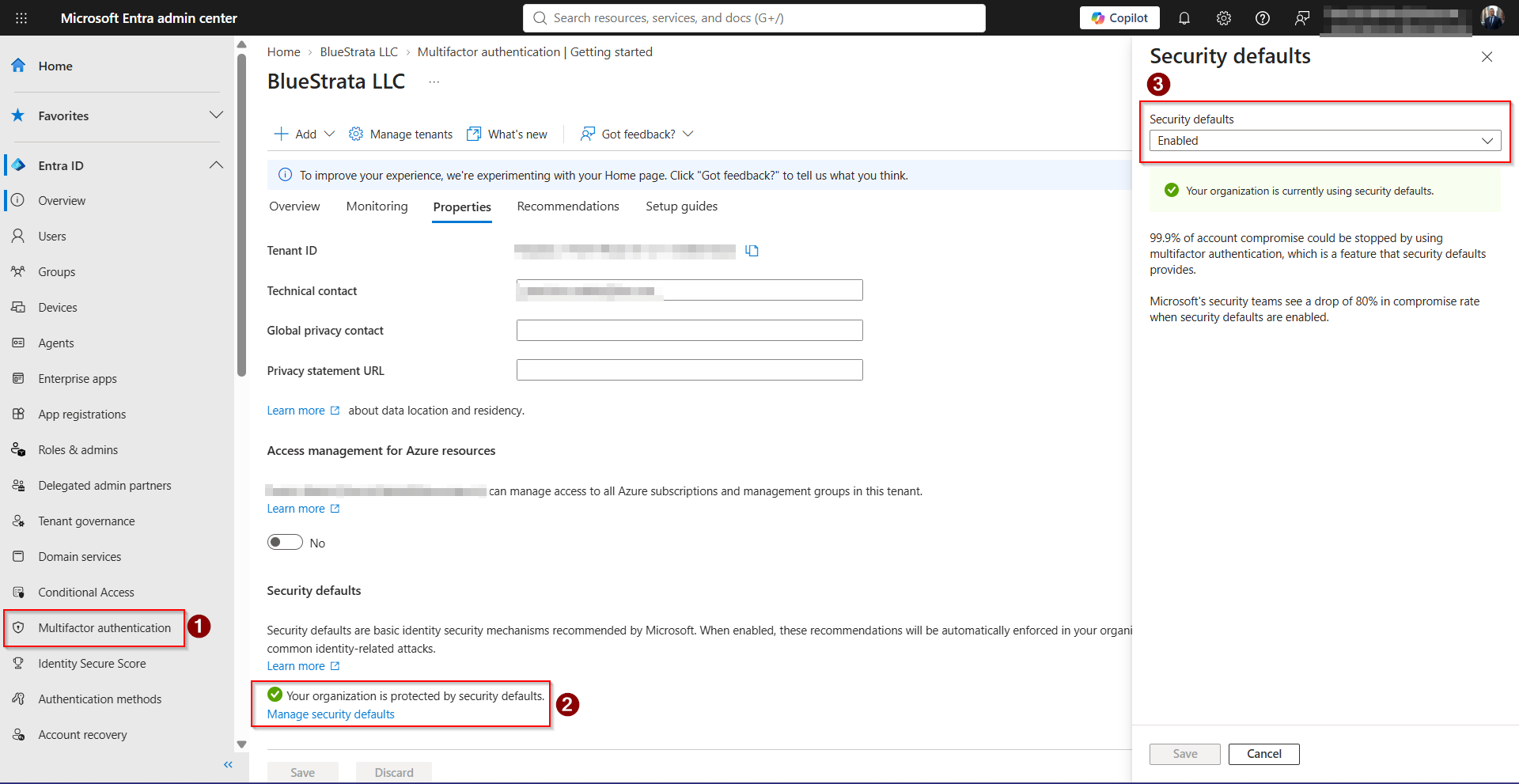
Microsoft’s own numbers back this up: enabling Security Defaults cuts account compromise by 80%, and stops 99.9% of automated account-takeover attempts outright, according to their own security team’s data.
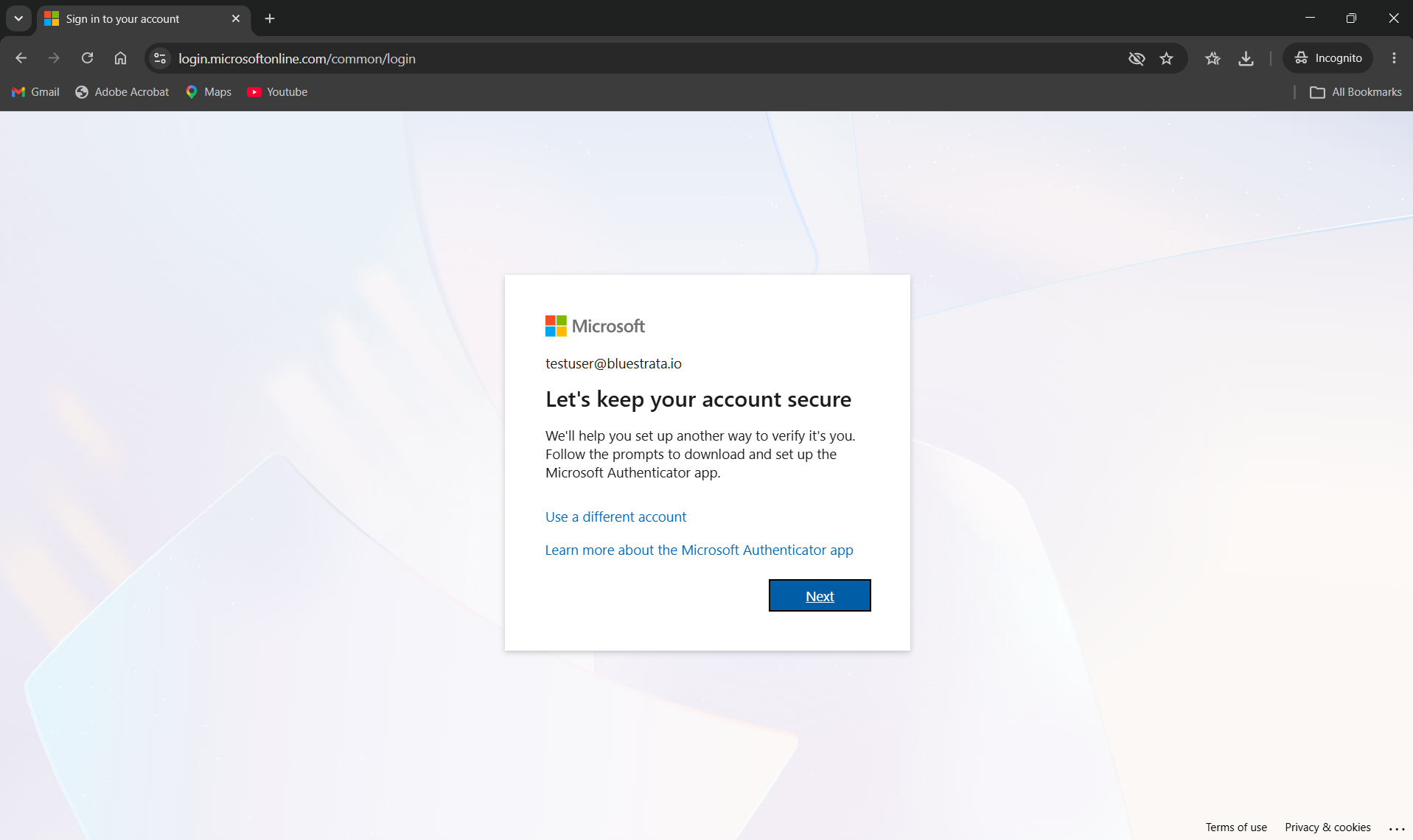
Once it’s on, every employee will get walked through setup the next time they log in. It takes most people about two minutes. Yes, someone will complain. Send them this article.
Beyond email
Email is where you start, not where you stop. Once that’s locked down, work through this list for anything else that would genuinely hurt if someone got in:
- Your domain registrar (whoever you bought your website’s domain from). If someone takes over your domain, they can redirect your entire business.
- Your business banking and payroll platforms.
- Your accounting software (QuickBooks), if it holds client financial data.
- Any admin-level access to your Microsoft 365 tenant specifically, even if you’ve already turned on MFA broadly. Admin accounts are worth double-checking by hand.
A quick note on which kind of MFA to use: an authenticator app (Microsoft Authenticator, or similar) is meaningfully more secure than text-message codes, since text messages can be intercepted through a trick called SIM swapping.
That said, text-message MFA is still dramatically better than no MFA at all. If the choice in front of you is “set up an app” versus “put this off for another month,” pick the text message option today and upgrade later.
None of this requires a security team
This is maybe fifteen minutes of actual work, and it eliminates the single most common way small businesses get broken into. It’s not glamorous. Nobody’s going to be impressed at a networking event that you turned on MFA. But I’d rather you be boring and secure than interesting and compromised.
Your homework: pick one account from the list above that you’re genuinely not sure about, and go check it. If you don’t know whether MFA is enforced on your Microsoft 365 admin accounts specifically, that’s the one to check first.
Passwords and MFA lock the front door. Email is usually the next weak point. Impersonation, invoice fraud, and lookalike domains are worth a look once this is handled.